Formats
Vector PDF vs scanned PDF patterns
A PDF is a container, not a guarantee of editable geometry. Laytura can import compatible vector paths directly or send a scanned page through the separate Scan to Pattern review and calibration workflow.
Before you start
- The original PDF
- A PDF viewer for a quick zoom check
- Preferably the original download rather than a printed-and-rescanned copy
Step-by-step
- 01
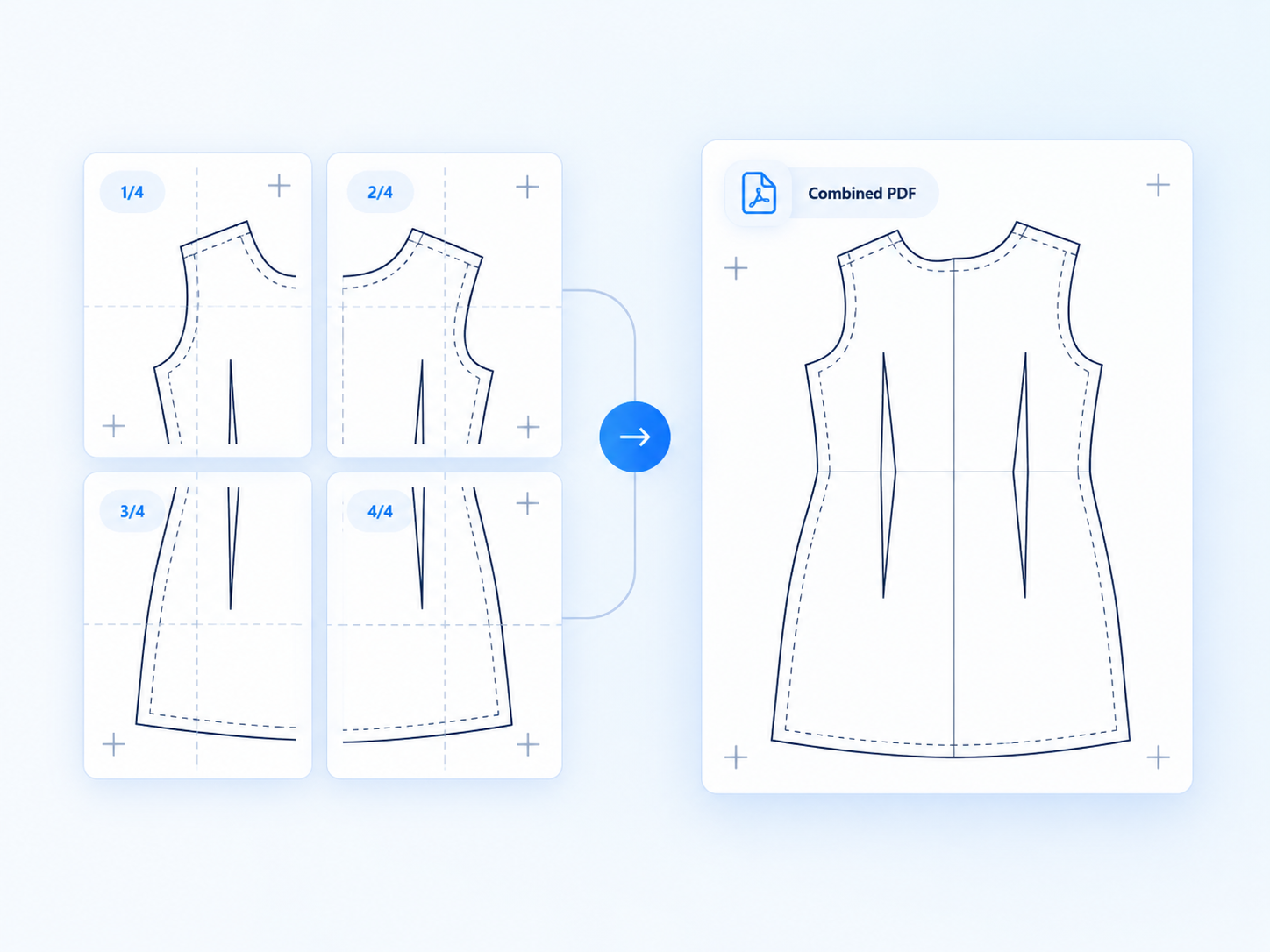
Zoom in closely
Vector lines usually stay sharp at extreme zoom. Scanned lines become visible pixels or blur because the page is an image.
Static preview—ready for a future product clip - 02
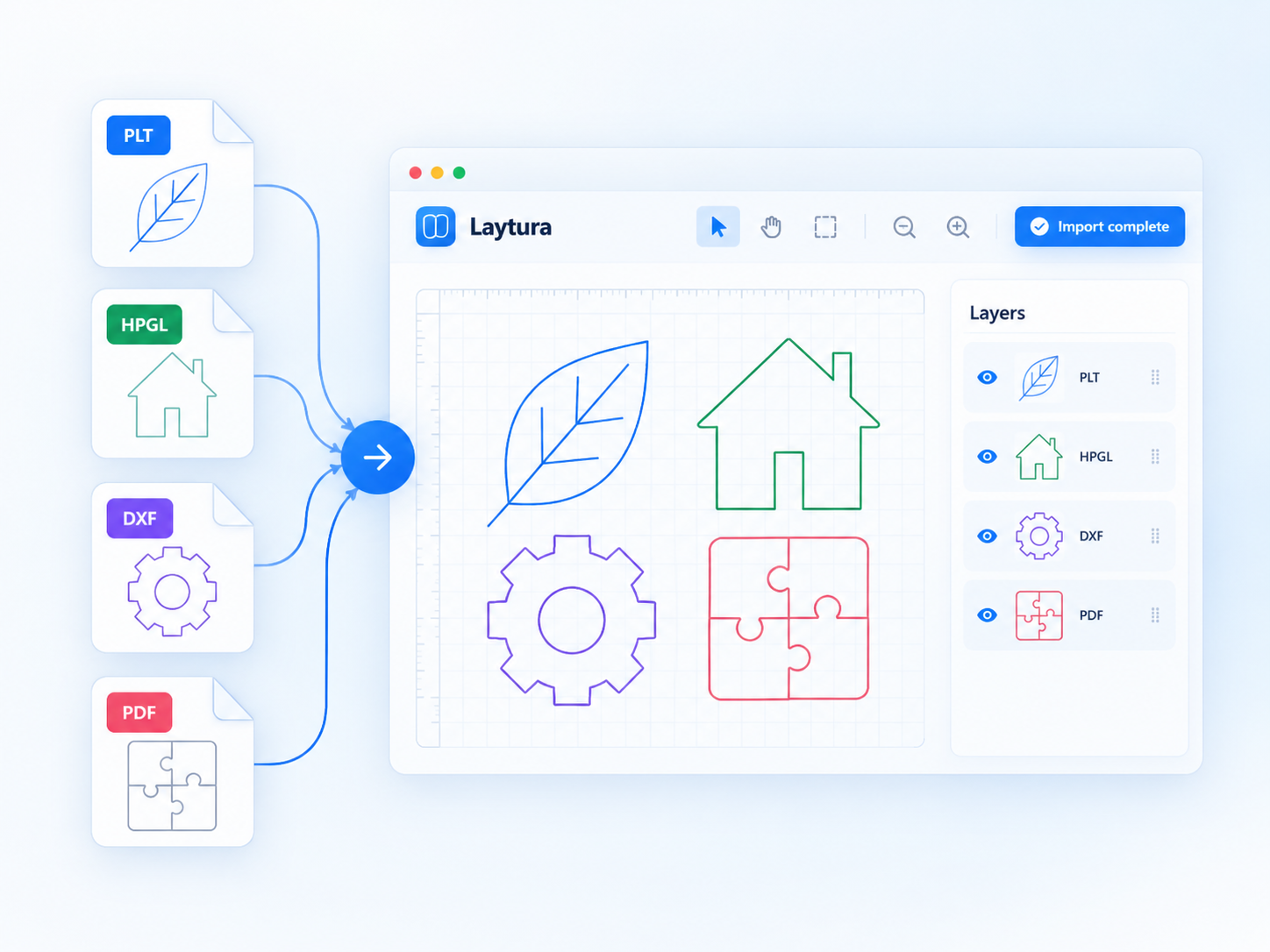
Open the file in Laytura
Review the import message. A raster-only page is offered to Scan to Pattern instead of being silently treated as accurate vector geometry.
Static preview—ready for a future product clip - 03
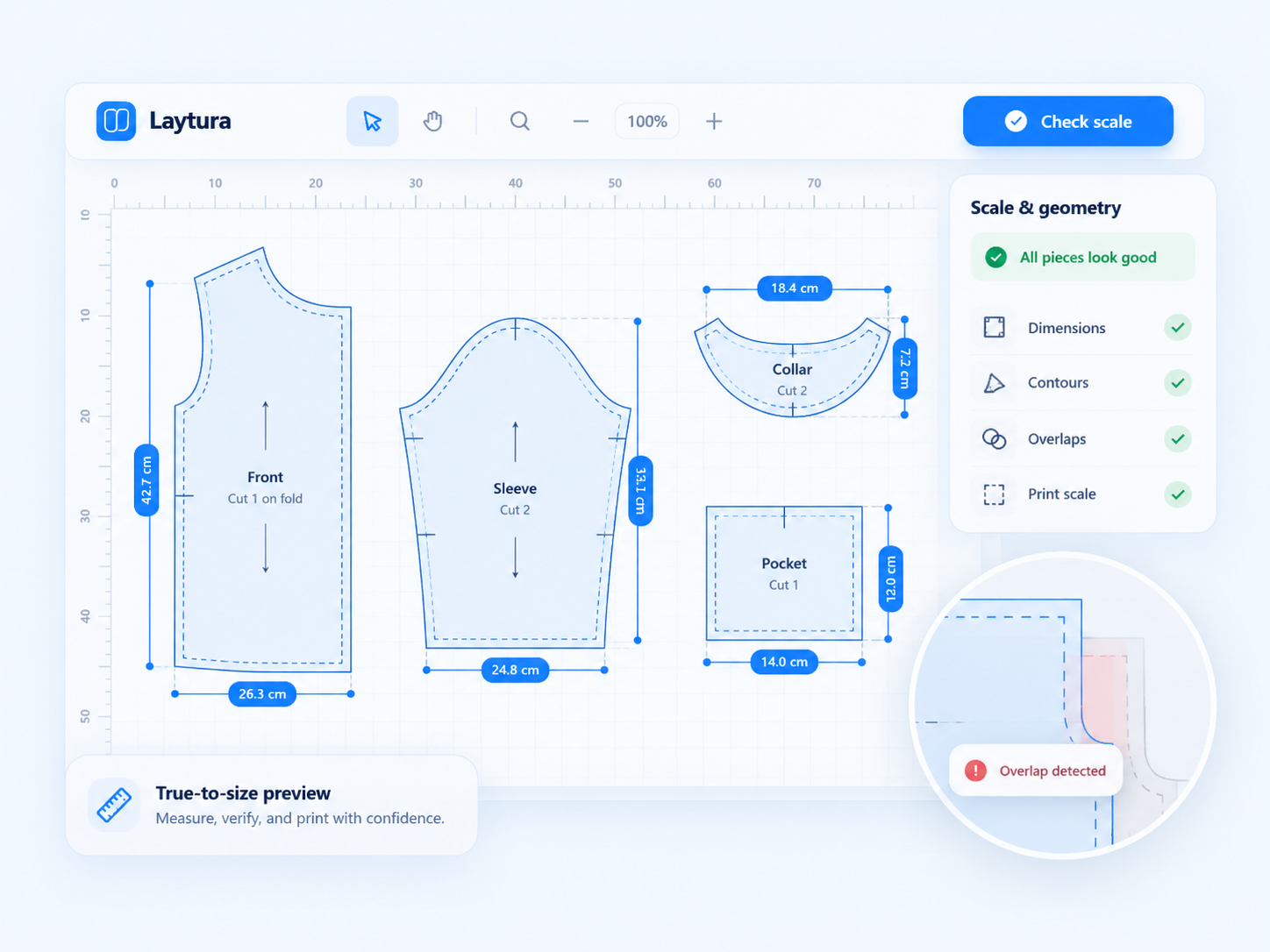
Review mixed-content warnings
A PDF may contain both vector paths and images or live text. Vector conversion can omit unsupported content, so compare the result with the source.
Static preview—ready for a future product clip
Common mistakes
- Using a screenshot of a pattern instead of the original PDF
- Assuming selectable text means pattern outlines are vector
- Continuing after an import warning without comparing the geometry
Expected result
A clear decision: use direct vector import, use Scan to Pattern with review and calibration, or return to the original source instead of guessing.