How it works

From source file to checked output

You stay in control through five visible steps. Laytura automates the repetitive geometry work and keeps each result available for review.

What you need

A supported file and the print result you want.

01Open

Bring the pattern into one workspace

What you do
Choose a PLT, HPGL, DXF, or compatible vector PDF from your device.
What Laytura does
Laytura reads the source geometry and, where the workflow supports it, identifies individual pieces.
What you see
The pattern appears on the canvas with dimensions, detected pieces, and source details.
Result
A workable pattern ready for inspection.
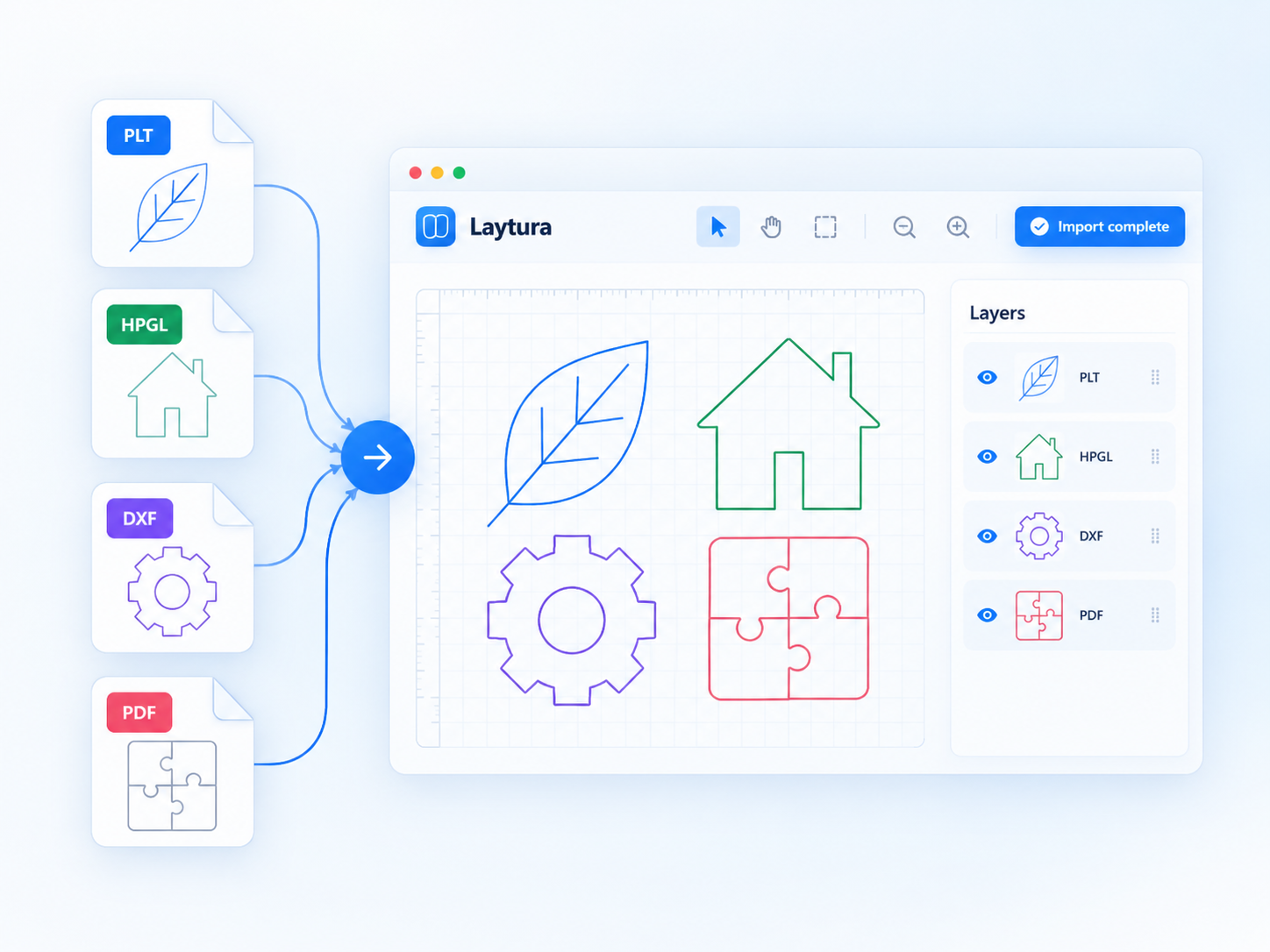
Supported pattern formats flowing into the Laytura workspace
Static preview—ready for a future product clip

02Check

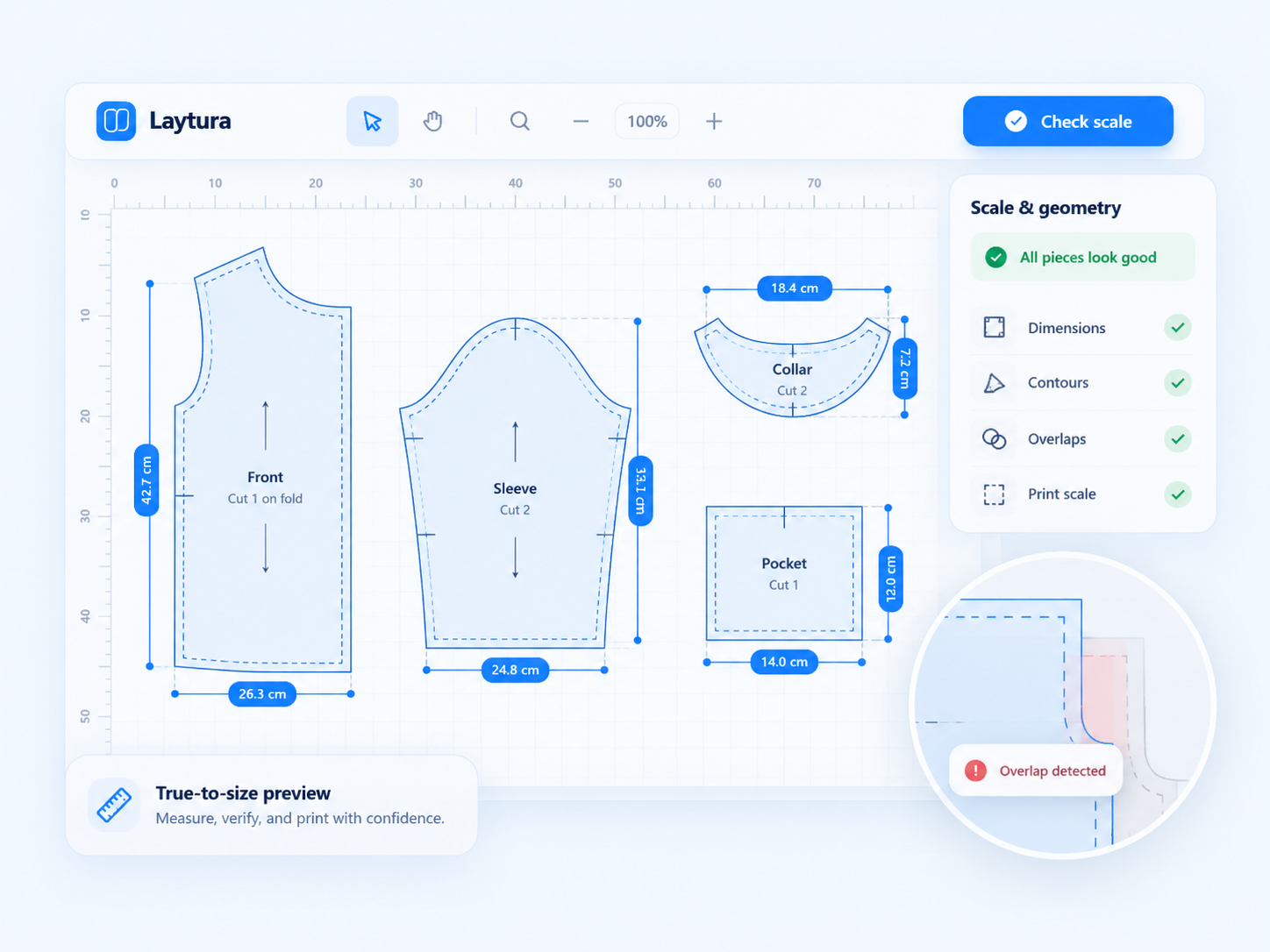
Confirm scale and geometry

What you do
Review dimensions, piece count, contours, overlaps, source warnings, and the 100% scale setting.
What Laytura does
Laytura summarizes findings and highlights conditions that deserve attention.
What you see
Measurements and status indicators stay beside the actual geometry.
Result
A pattern you understand before moving or printing it.
Laytura showing pattern dimensions and geometry checks
Static preview—ready for a future product clip

03Arrange

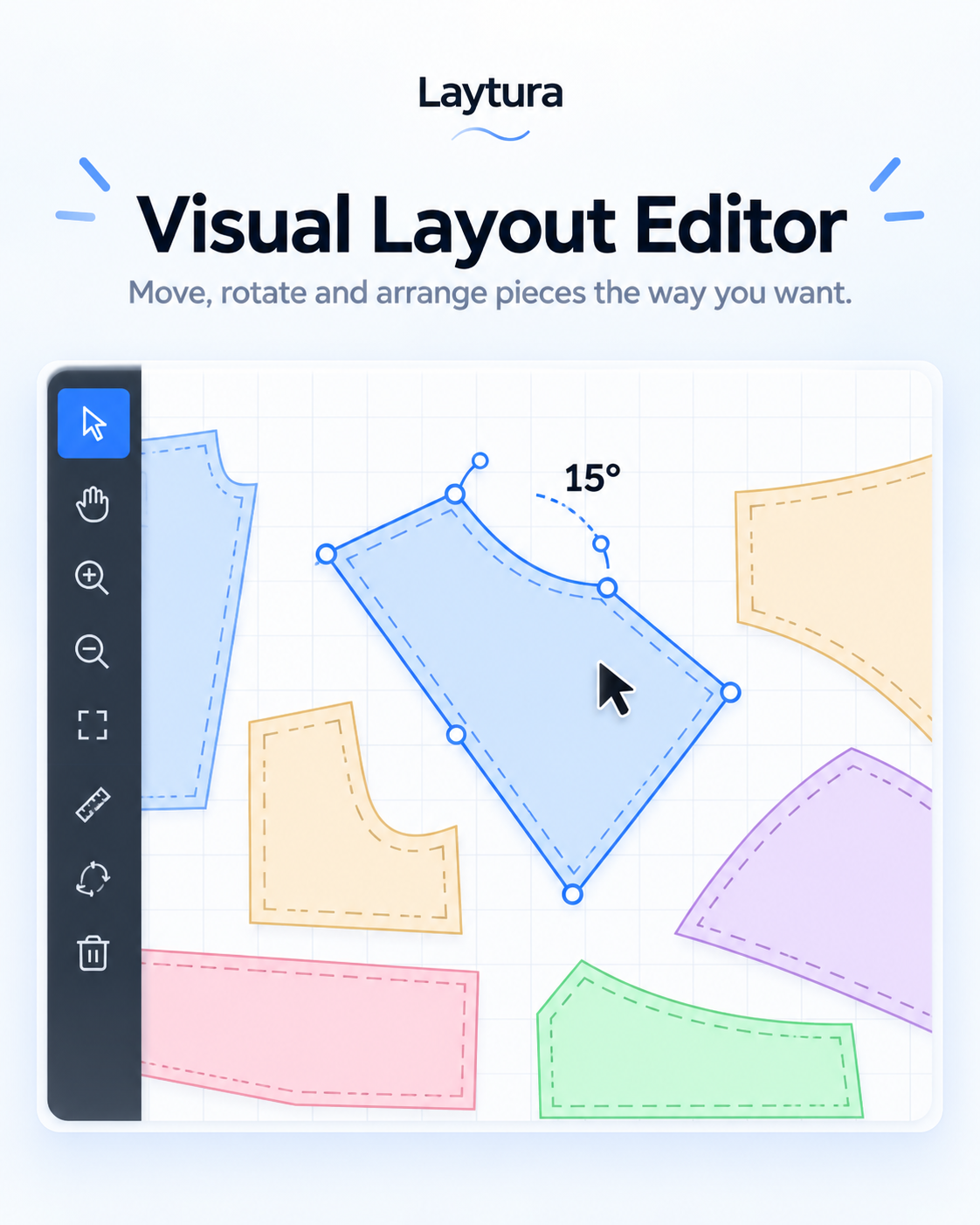
Place pieces deliberately

What you do
Select pieces, then move, nudge, rotate, lock, or group them as needed.
What Laytura does
Laytura updates the layout and blocks conflicting placement when collision protection applies.
What you see
Selection bounds, controls, and page guides respond directly to each change.
Result
A layout that matches your preferred order and spacing.
A pattern piece selected and rotated in the visual editor
Static preview—ready for a future product clip

04Prepare

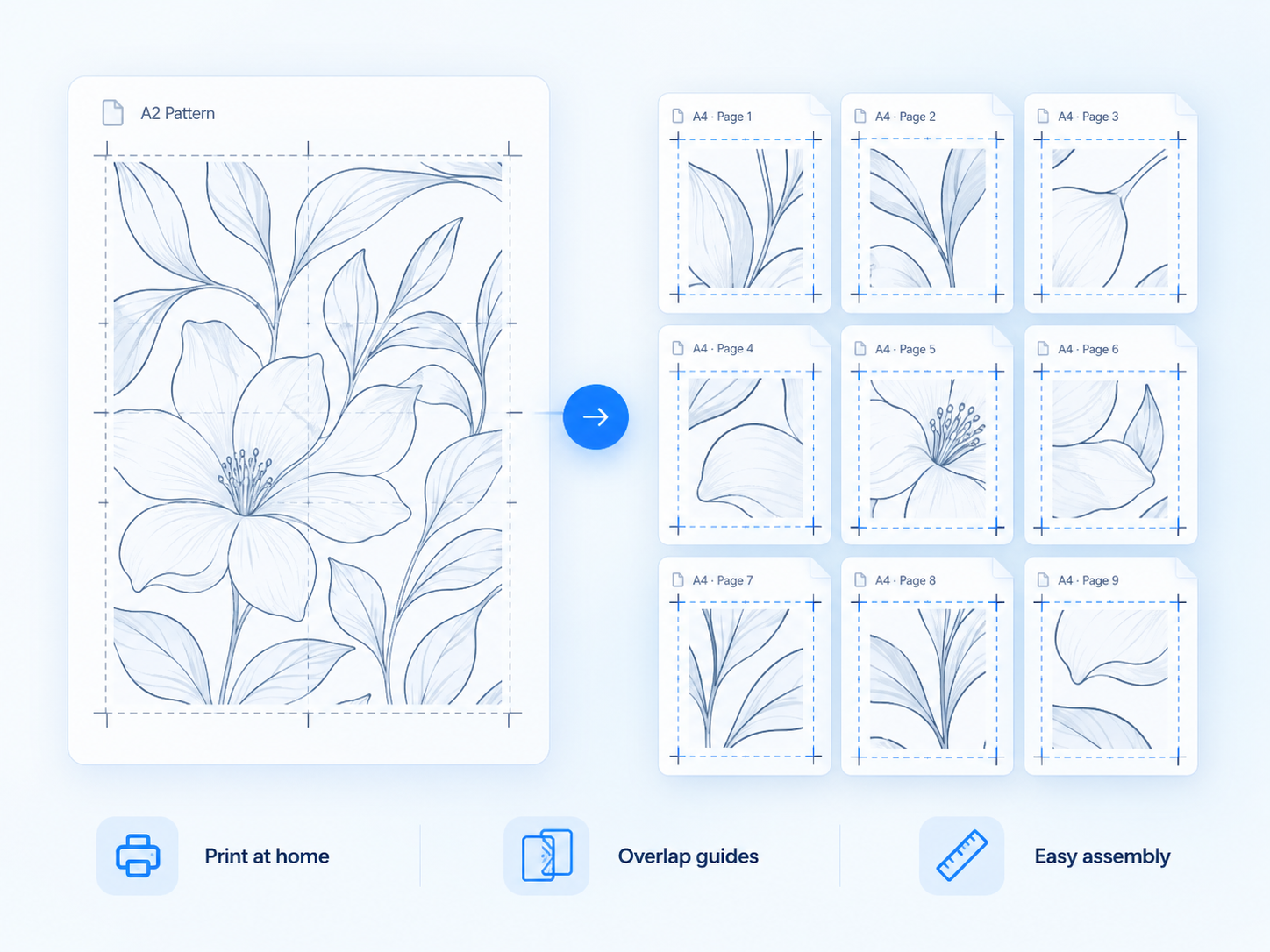
Choose the print plan

What you do
Optionally optimize the arrangement, then choose paper, orientation, scale, overlap, labels, and guide options.
What Laytura does
Laytura calculates page boundaries and updates the sheet set from the current arrangement.
What you see
A sheet preview shows occupied pages, labels, registration marks, and assembly overlap.
Result
A page layout ready for final review.
A large pattern divided into printable A4 sheets
Static preview—ready for a future product clip

05Export

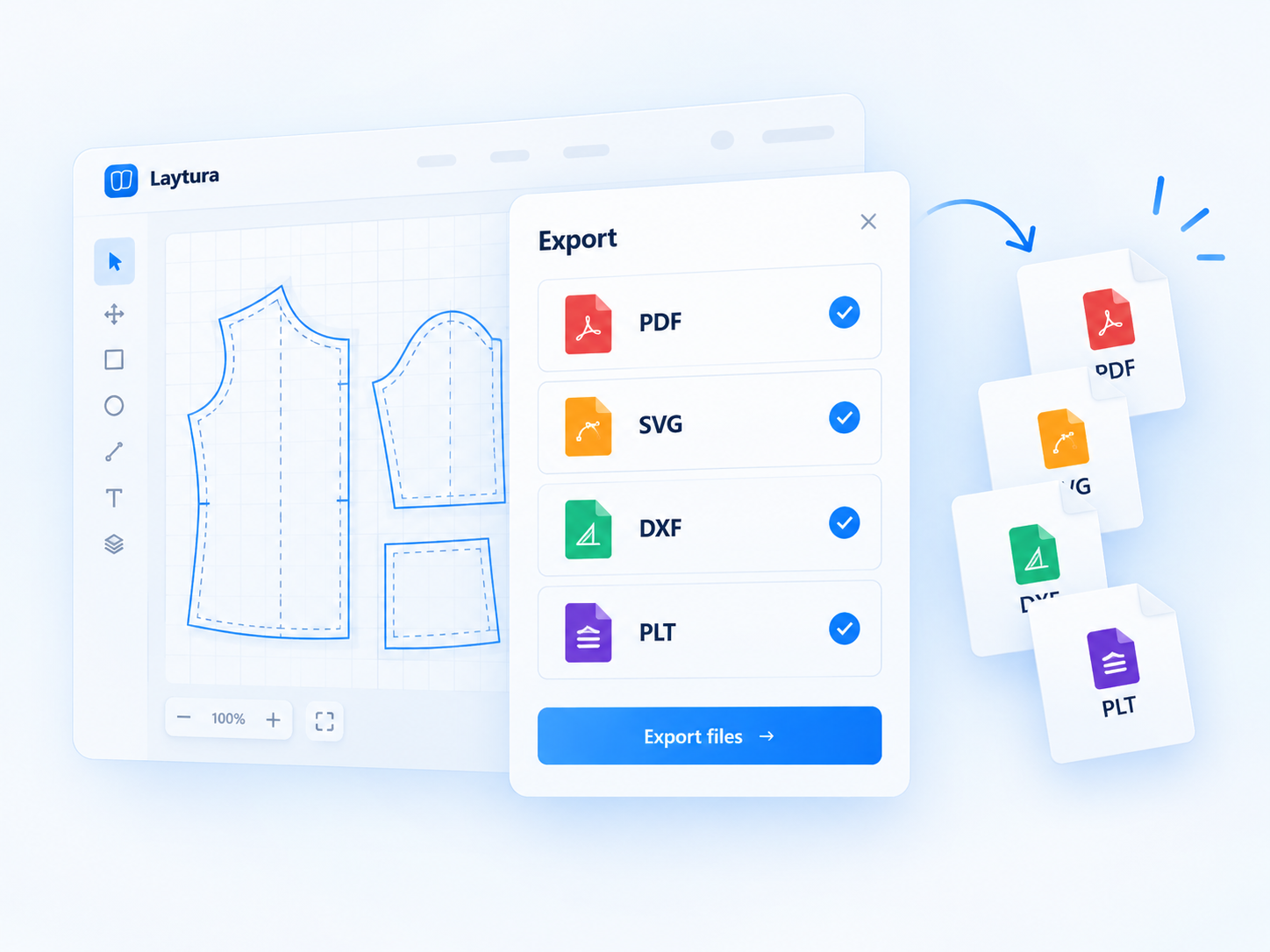
Download the reviewed result

What you do
Preview the exact output and choose the format supported by the active workflow.
What Laytura does
Laytura generates the selected PDF or vector file locally in the browser.
What you see
The export controls reflect available formats and the file downloads to your device.
Result
A printable or editable file you can use in the next step.
Laytura export options for PDF, SVG, DXF, and PLT
Static preview—ready for a future product clip

Automatic vs manual

Automation proposes. You review.

Laytura can automate

  • Read supported vector geometry
  • Detect likely pattern pieces
  • Calculate page boundaries
  • Propose compact placement

You still decide

  • Confirm scale and dimensions
  • Correct or arrange pieces
  • Choose paper and output options
  • Approve the final preview

One physical check remains essential

Measure the printed scale check before cutting.

Keep Laytura and the final printer dialog at 100% or Actual size. Print the calibration page first and measure it with a reliable ruler before printing or cutting the complete project.

Read the 100% scale guide

Ready when your pattern is

Make your pattern printable.

Open a pattern, check the scale, and preview the result before using paper.

Open Laytura