Features

Everything Laytura can do—without hiding the limits

Start with four core capabilities, then check the formats, supporting tools, device expectations, and constraints that matter to your workflow.

Core capabilities

The work that moves a pattern toward print.

These four capabilities form the main Laytura workflow.

Detect

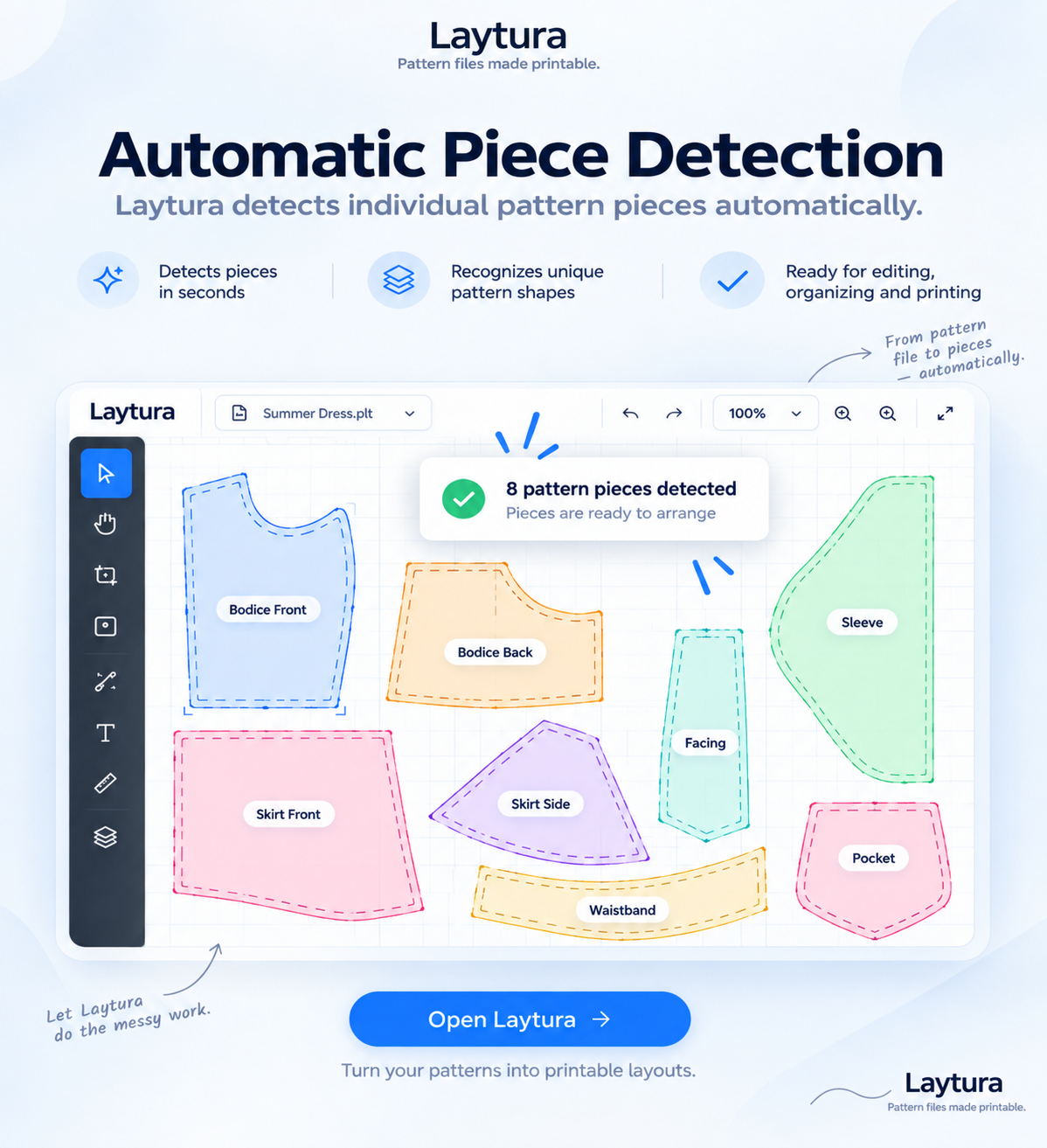
Automatic Piece Detection

Turn supported geometry into selectable pattern pieces.

Laytura analyzes imported vector geometry and groups likely pieces so you can work with them independently. Detection is automatic, but the result remains visible for review.

  • Inspect each detected piece
  • Review contours and dimensions
  • Reset or continue manually when a file needs attention
Laytura detecting individual garment pattern pieces

Arrange

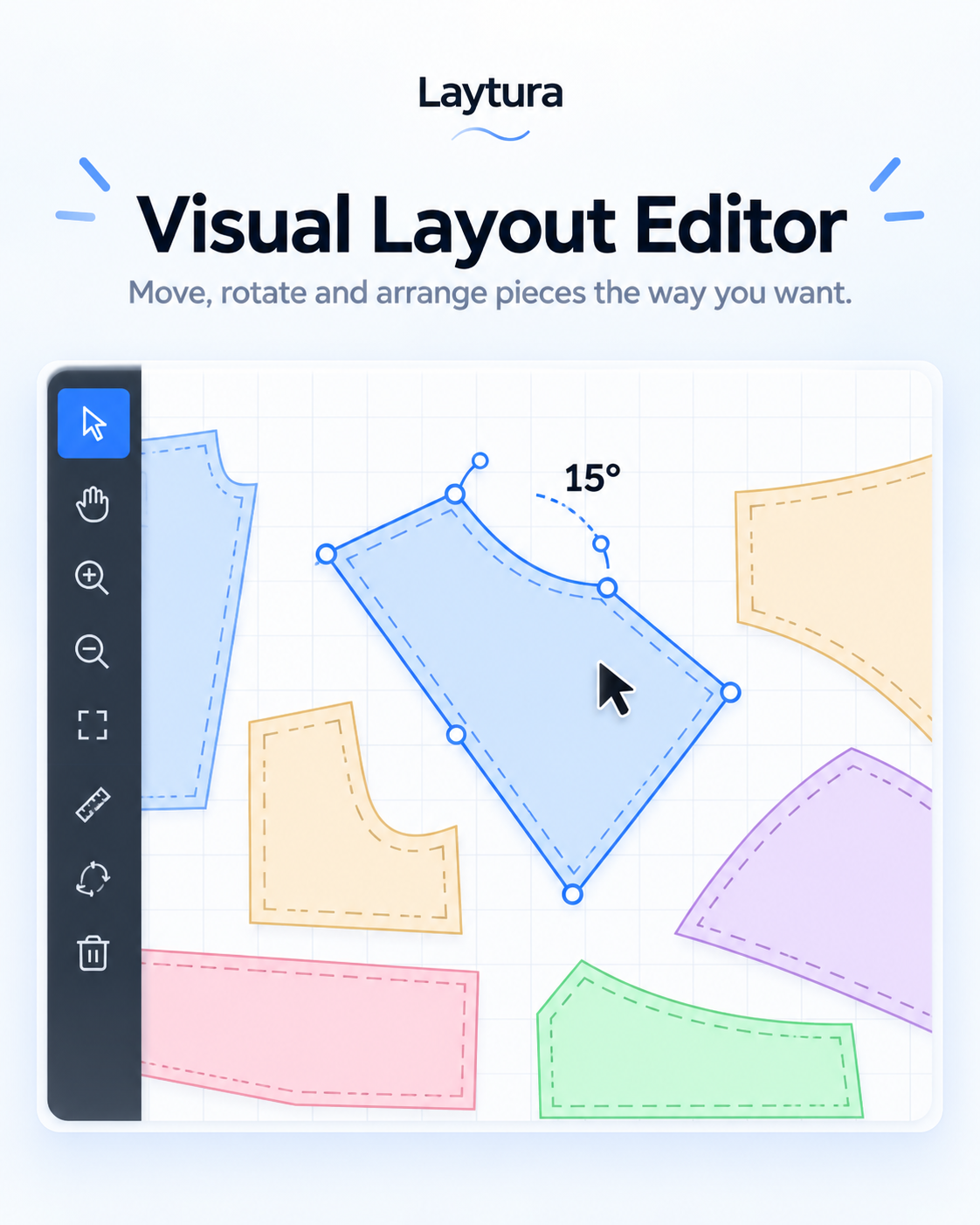
Visual Layout Editor

Place pieces where they make sense for your print plan.

Select, drag, nudge, rotate, lock, and organize pieces on a true-size workspace. Undo and redo help you explore without committing every change.

  • Pointer, touch, and keyboard controls
  • Multi-select and piece actions
  • Collision protection for accidental overlaps
A pattern piece selected in the Laytura visual layout editor

Optimize

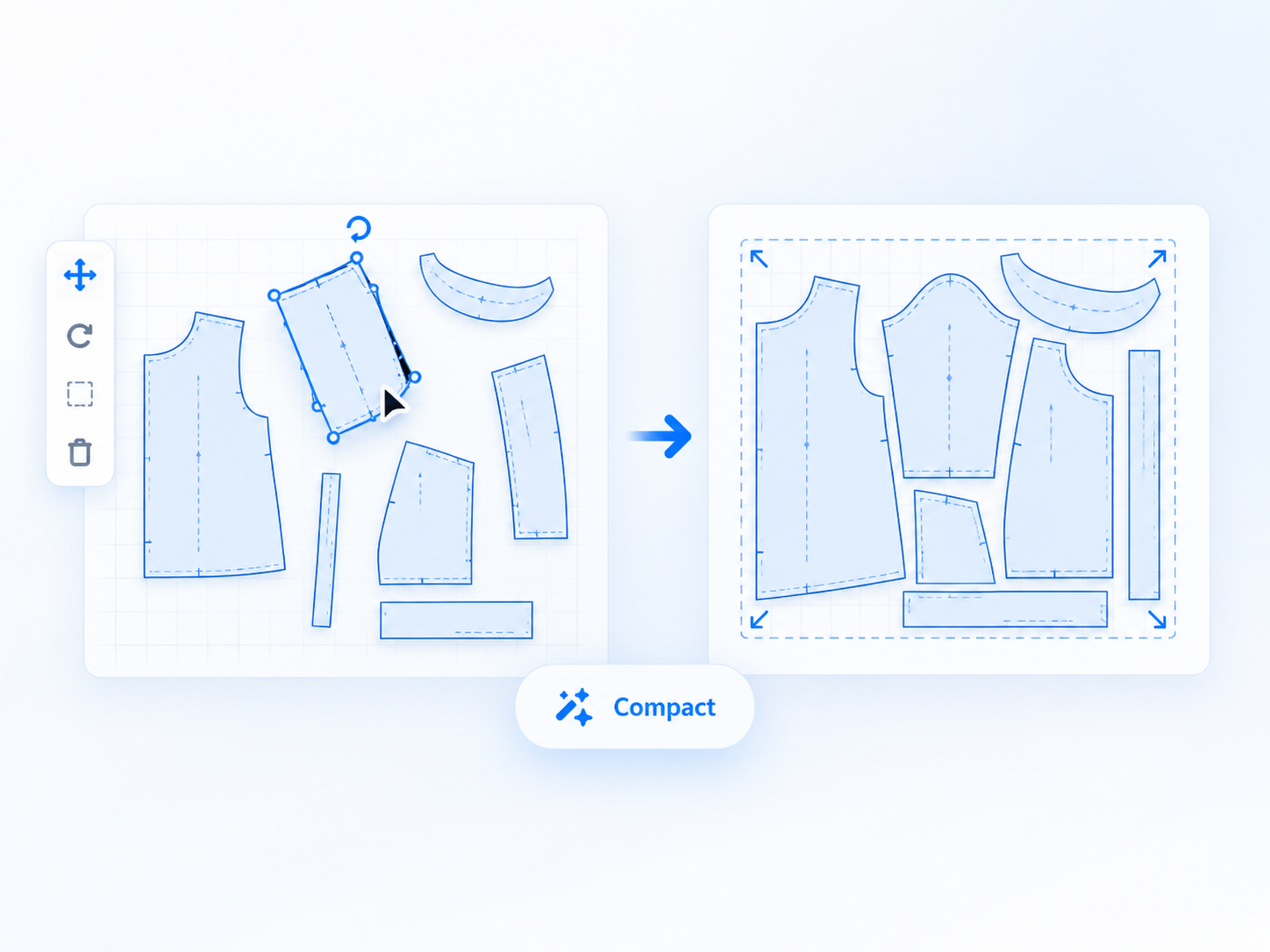
Smart Layout Optimization

Try a denser arrangement while keeping the result reviewable.

Auto Optimize and Compact can reduce unused printable space when the geometry allows. The suggestion is not final: inspect it, compare page boundaries, and undo it if it does not suit the project.

  • Automatic and selected-piece tools
  • Page-aware placement
  • Reversible results
Pattern pieces changing from a scattered to a compact layout

Print

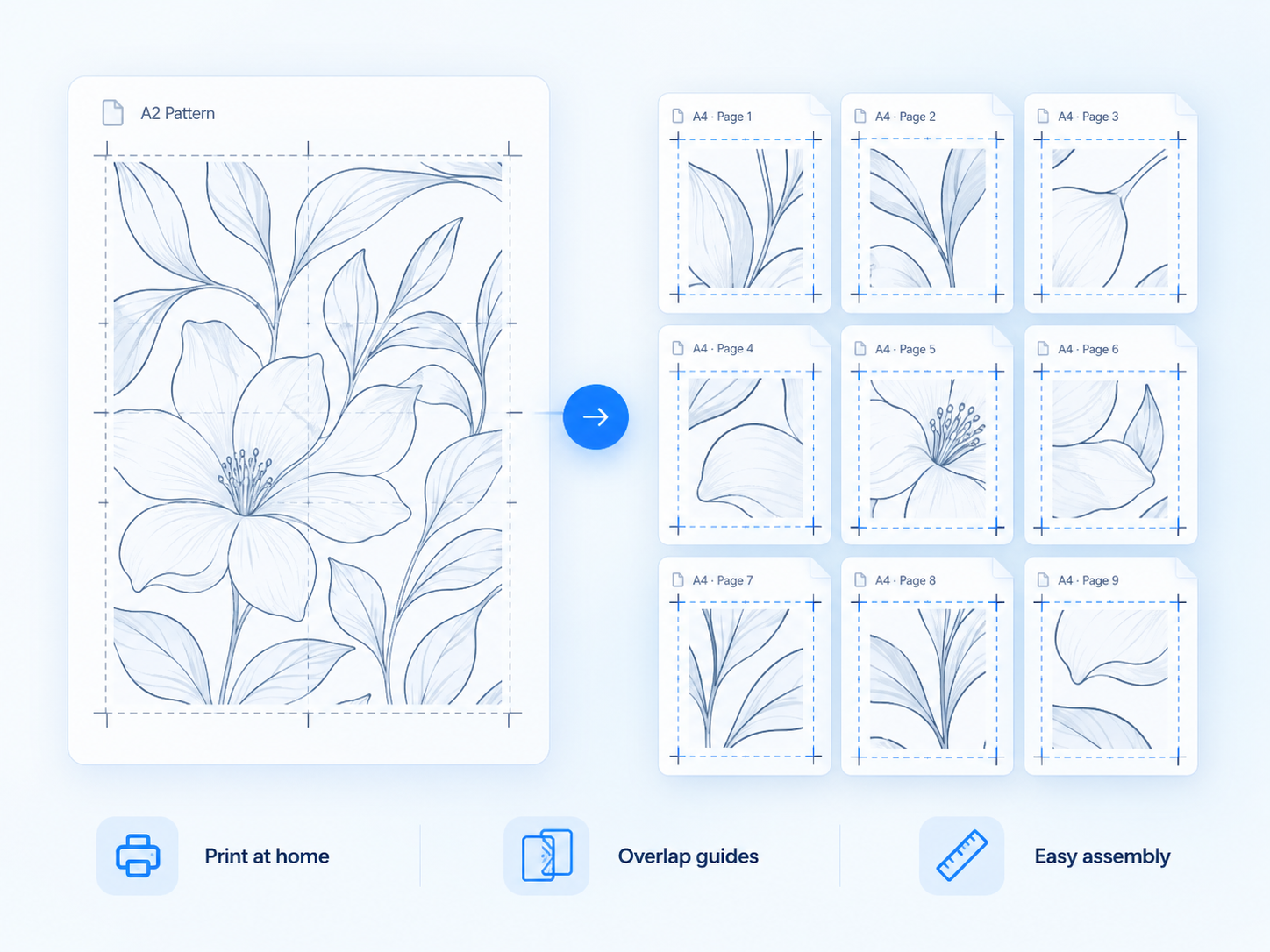
Printable Page Layouts

Turn a full-size pattern into sheets a home printer understands.

Choose paper size, orientation, scale, overlap, labels, and guide options. Preview the exact tiled sheets before exporting the PDF.

  • A-series and common US paper sizes
  • Page labels and assembly guides
  • Scale-check page and blank-sheet controls
A large pattern tiled across labelled A4 sheets

Supporting tools

Useful controls without equal visual weight.

These tools support the core workflow and stay in the same local project.

Import and inspect

  • PLT / HPGL / HPG import
  • DXF import
  • Compatible vector PDF import
  • PNG, JPEG, and scanned-PDF tracing with review and calibration
  • Dimensions, contours, overlaps, and scale checks

Rebuild and export

  • Rebuild compatible tiled vector PDFs
  • Tiled PDF export
  • Full-size PDF and SVG export
  • DXF and PLT / HPGL export where supported

Edit and recover

  • Saved portable project files
  • Undo and redo
  • Keyboard shortcuts and nudge controls
  • Light, dark, and system workspace themes

Access

  • Responsive browser workspace
  • Touch support for core controls
  • English, Lithuanian, German, Polish, and Russian in the editor
  • No installation required

Compatibility

Know what will work before you start.

Support depends on the source geometry and the output you need.

Inputs
PLT, HPGL, HPG, DXF, compatible vector PDF, PNG, JPEG, and scanned PDF pages
Exports
Tiled PDF, full-size PDF, SVG, DXF, and PLT / HPGL depending on the active workflow
Paper
A5 through A0, Letter, Legal, Tabloid, and custom sheet sizes
Scale
100% by default; only changes when you change the scale setting
Projects
Portable project files are saved to your device and reopened manually
Browsers
A current browser with JavaScript, local file access, and download support
Current limitations

What Laytura does not pretend to solve.

Scans and photos

Scan to Pattern creates reviewable geometry, not a certified original. Calibrate the physical scale, and note that one scale value cannot correct perspective in an angled photo.

Mixed PDFs

Images and live text may be omitted from vector conversion; review warnings and the result.

Automatic detection

Unusual or disconnected geometry can require review or manual arrangement.

Mobile use

Core controls are responsive, but detailed arrangement is more practical on a larger screen.

Physical printing

A screen preview cannot certify a printer. Always measure the printed scale check.

Cloud storage

The current beta does not provide account-based sync or browser-to-browser project storage.

Device and privacy

Your file stays in the workspace you opened.

The current editor processes pattern files locally in the browser. The marketing website does not upload them. Saved project files are downloaded to your device; there is no account cloud library in the current beta.

Questions

Product details

What happens if piece detection is wrong?

Inspect the detected geometry before arranging or exporting. You can continue with manual controls, reset the pieces, or try a cleaner compatible vector source; Laytura does not silently certify an uncertain result.

Are scanned PDF patterns supported?

Yes, through the separate Scan to Pattern workflow. Review the traced pieces and calibrate physical scale before printing; vector PDF import and tiled-PDF reconstruction remain separate workflows.

Does Laytura preserve physical scale?

The workspace uses 100% by default and keeps physical dimensions unless you intentionally change scale. The final printer dialog can still rescale a PDF, so print and measure the calibration check.

Does it work on mobile?

The interface adapts to smaller screens and supports touch for core tasks. Fine arrangement, detailed inspection, and large projects are easier on a tablet or desktop.

Ready when your pattern is

Make your pattern printable.

Open a pattern, check the scale, and preview the result before using paper.

Open Laytura